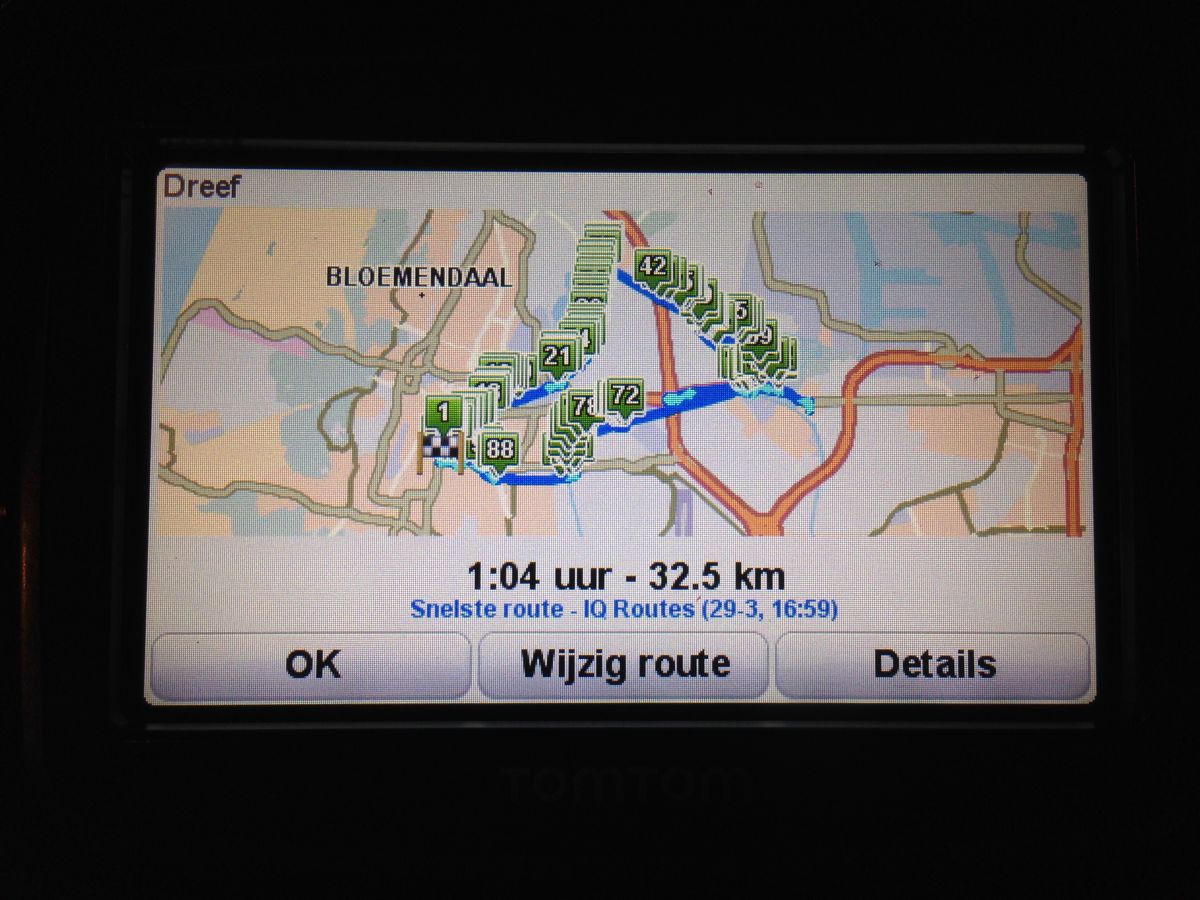
Creating routes for a TomTom Rider on a Mac
How I converted a Google Maps route into an itinerary that a TomTom Rider could actually open on a Mac.

Outdated article: This article has been preserved for reference, but the information may no longer be accurate.
Creating a route for the TomTom Rider on a Mac can be quite a hassle. The Rider is the special TomTom model intended for motorcycles. There is a bookmarklet for exporting a Google Maps route as a GPX file, but it did absolutely nothing for me. There are also several ways to convert a KML file from Google Maps or Google Earth to GPX, but most methods I tried resulted in the message: "The GPX file could not be converted to an itinerary."
Eventually I found a workflow that worked. This is how I did it.
Download GPSBabel and copy it to your Applications folder.
Open Google Maps and sign in with a Google account.
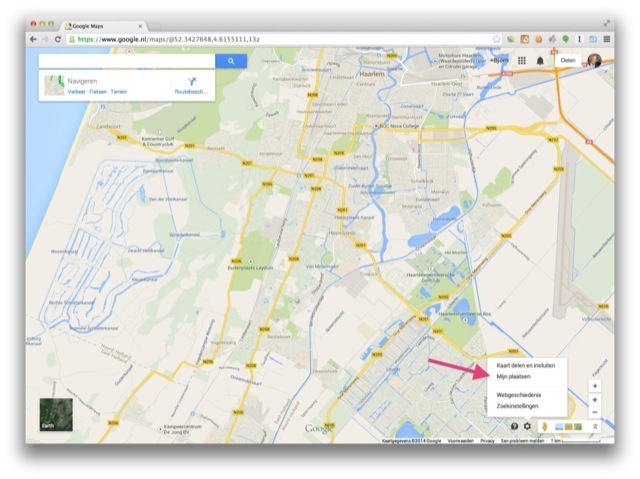
Click the cogwheel in the bottom-right corner and choose "My Places".
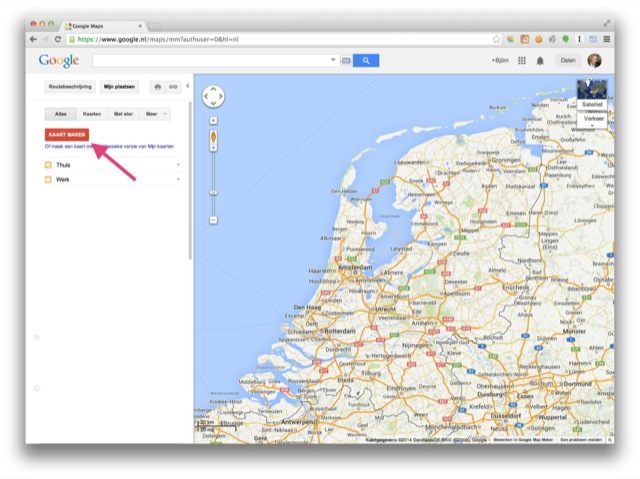
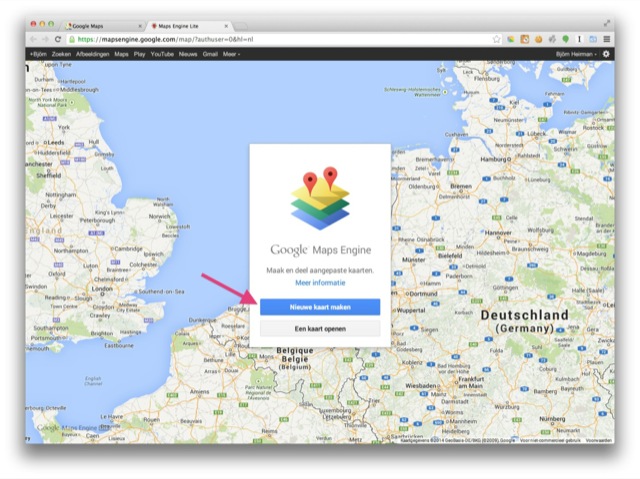
Click "Create Map" and then "Create a new map".
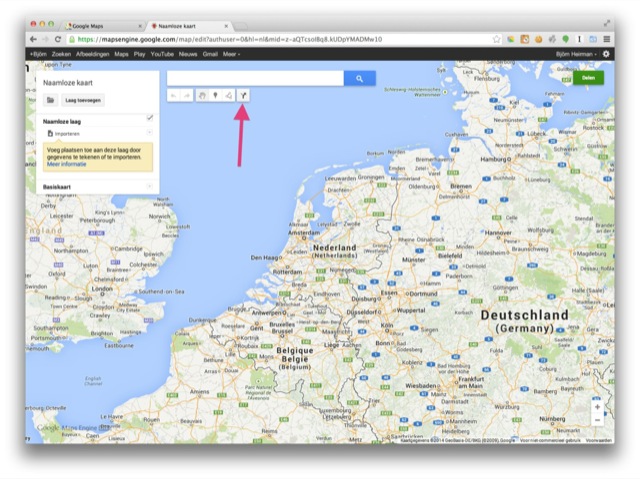
You can now start creating your route. Click the icon with the Y-shaped arrow below the input field.
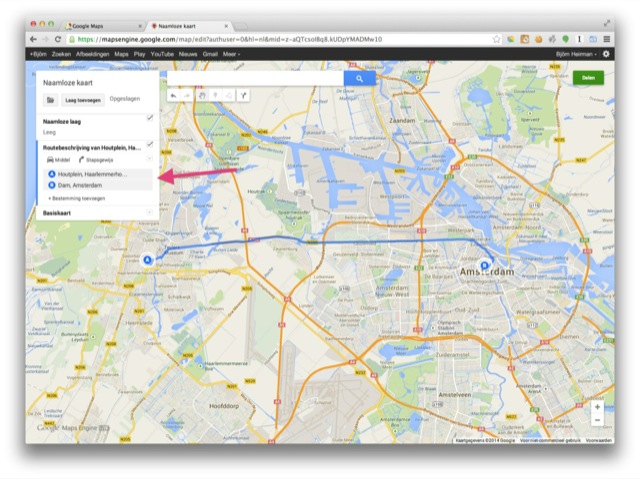
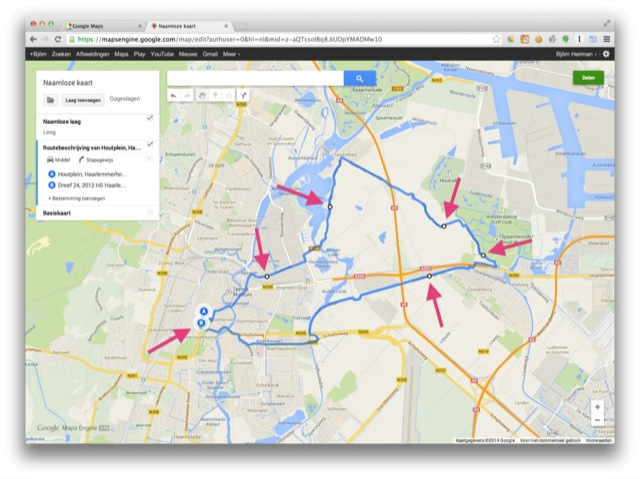
When the route is finished, click the folder icon in the top-left corner and choose "Export to KML". Your browser will download a file with a very long name ending in .kml.
Open GPSBabel. Select "Google Earth (Keyhole) Markup Language" as the input format and "GPX XML" as the output format. Use the first "File Name(s)" button to select the file you just downloaded. Then use the second button to choose a name and location for the output file. This name will also be shown on your TomTom, so choosing something useful is not a bad idea.
Click "Apply".
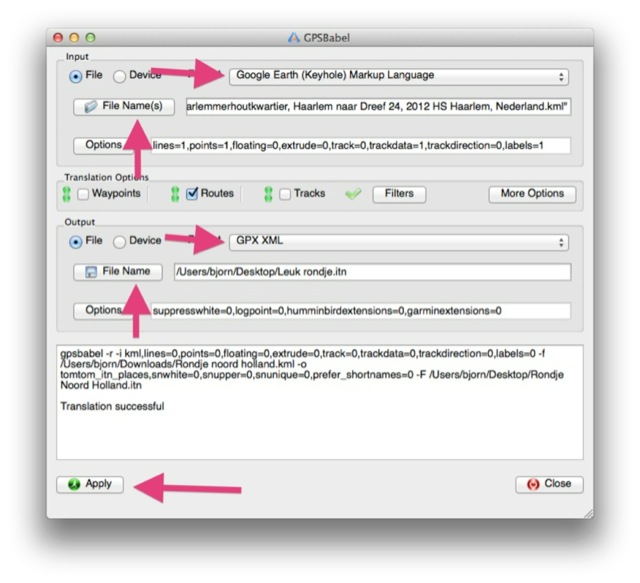
If everything went well, you should now find a .gpx file in the location you selected. Connect your TomTom Rider over USB and copy this file to the gpx2itn folder.
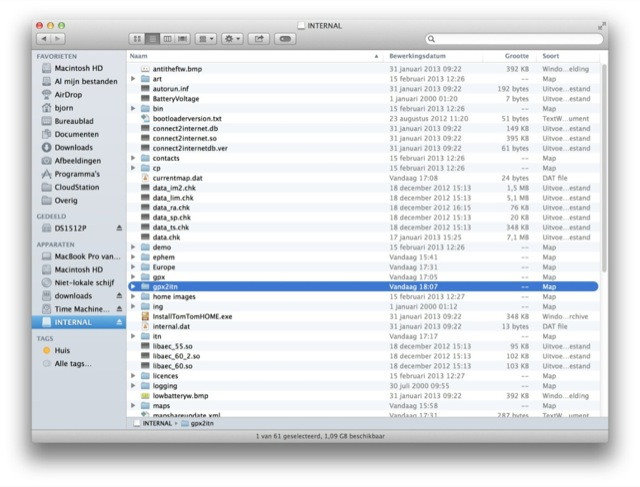
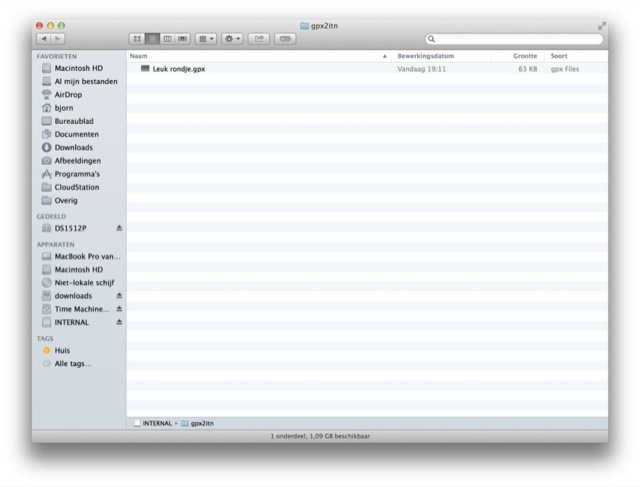
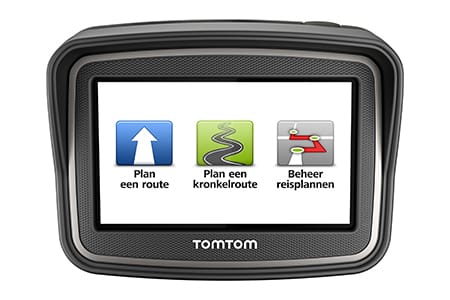
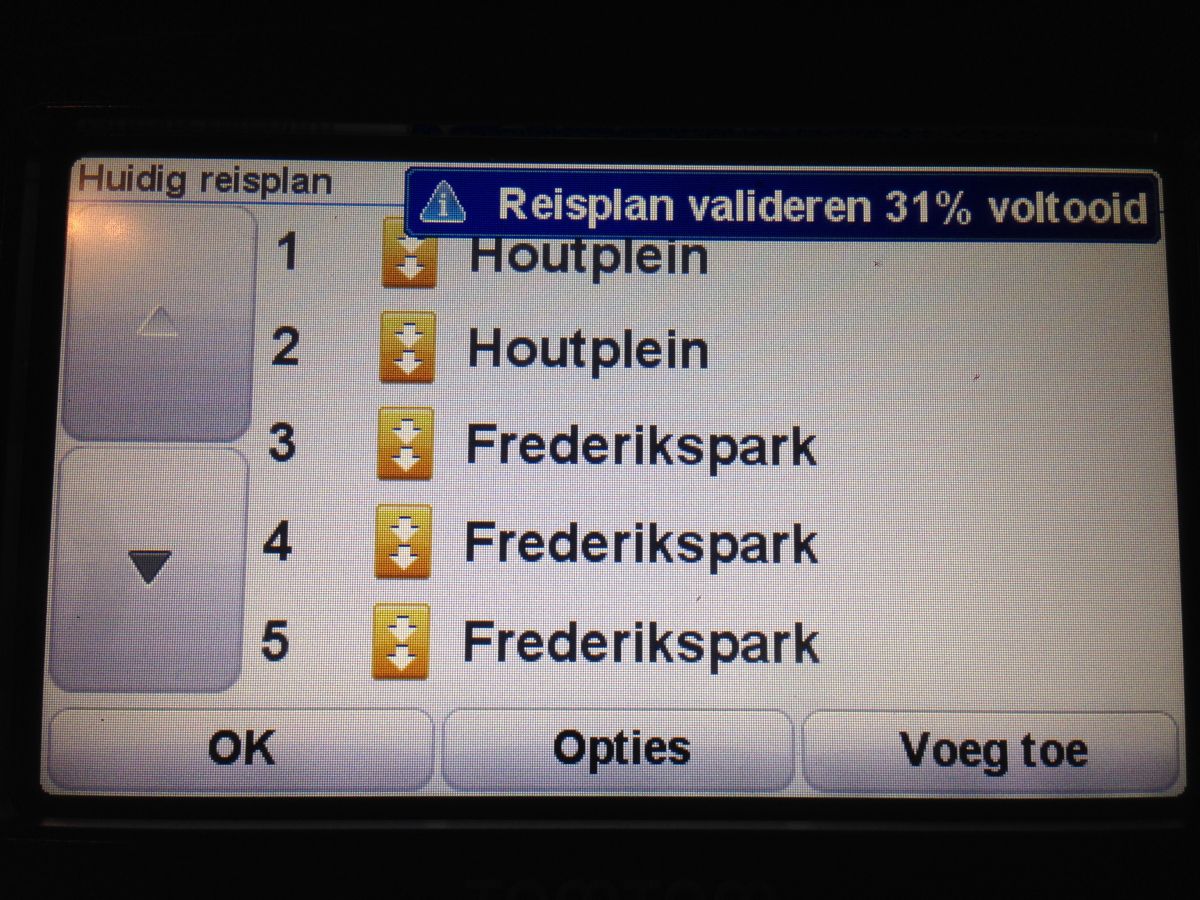
Disconnect the TomTom Rider and let it start. The TomTom should now convert the GPX file. You will find the resulting route under "Manage itineraries" in the main menu.
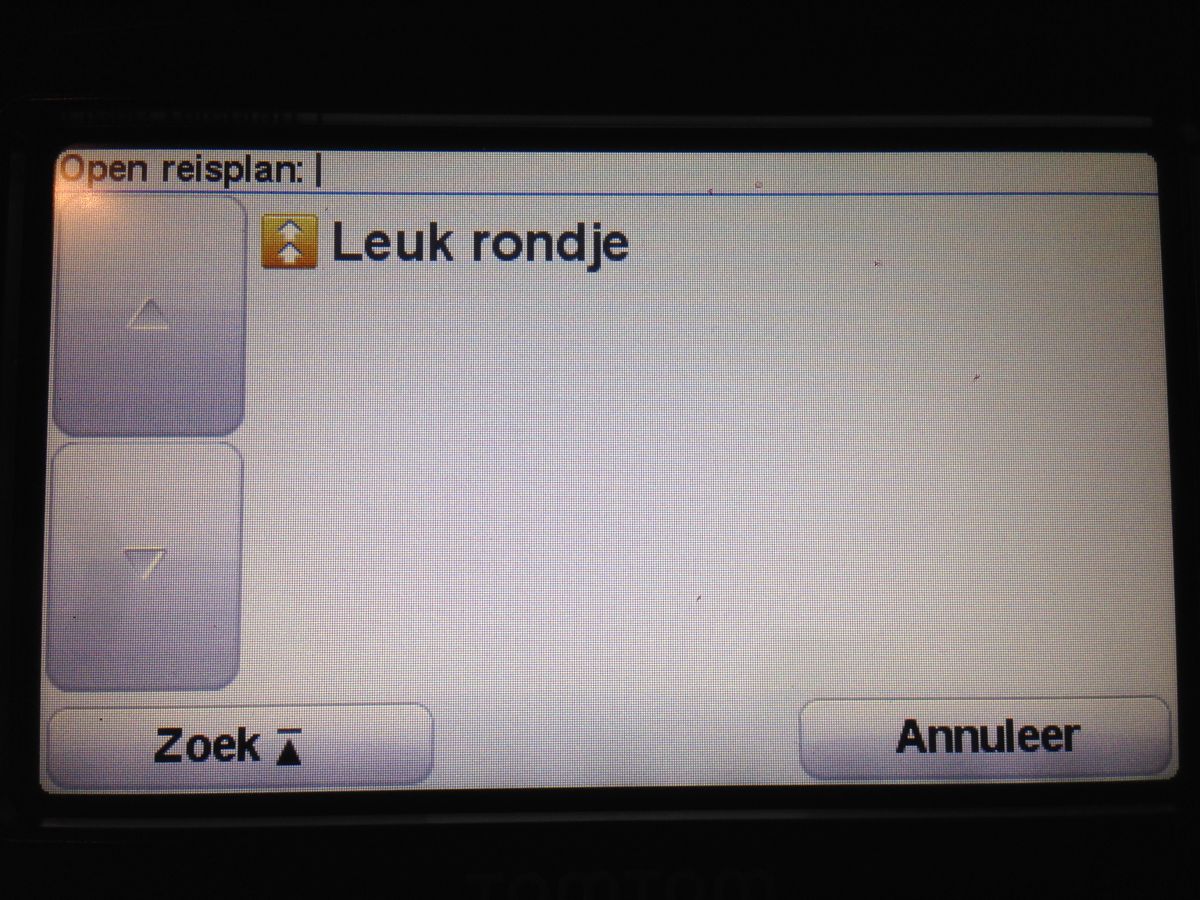

Answer this question with "Yes".